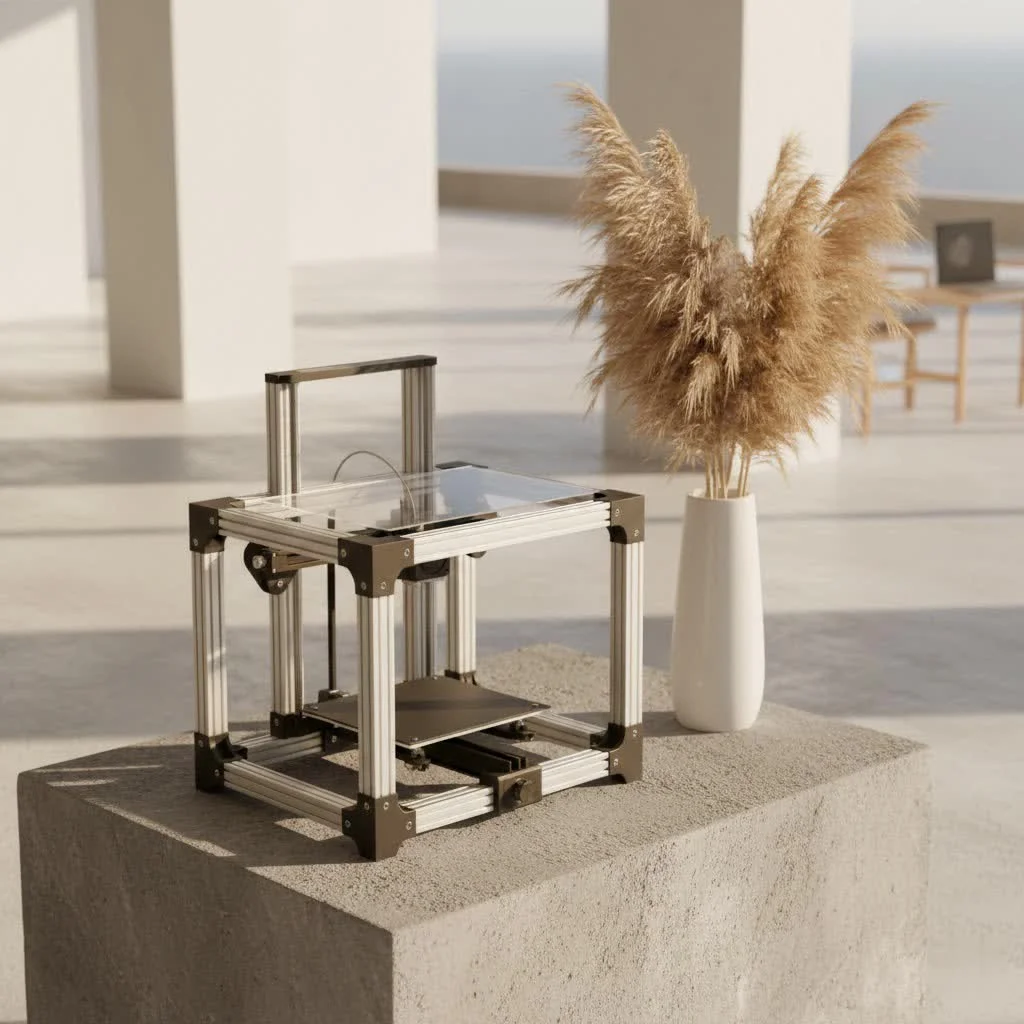
A 3D printer slicer is essential software that converts a 3D digital model into machine-readable instructions (G-code) for a 3D printer. It virtually “slices” the model into thousands of horizontal layers, typically ranging from 0.1mm to 0.3mm in thickness, dictating every movement, material extrusion, and temperature adjustment for successful 3D printing.
What Exactly is a 3D Printer Slicer?
At its core, a 3D printer slicer is a software application that acts as a translator, converting a three-dimensional digital model into a language your 3D printer can understand. Think of it as the conductor of a complex orchestra, taking a musical score (your 3D model) and breaking it down into individual notes and instructions for each musician (the printer’s various components).
The term “slicer” comes from its primary function: it virtually “slices” your 3D model into thousands of horizontal, two-dimensional layers. These layers are incredibly thin, often just a fraction of a millimeter, mirroring how a 3D printer builds an object layer by painstaking layer. The input for this process typically comes in common 3D model formats such as STL, OBJ, or 3MF. The output, however, is a precise set of machine-readable instructions known as G-code. This G-code file then guides your 3D printer through every single step required to bring your digital design to life.
The Slicing Process: How It Transforms Your Vision into Reality
The journey from a digital file to a physical object involves several critical steps within your 3D printer slicer, each offering opportunities to fine-tune your print for optimal results.
Importing Your 3D Model
The first step is bringing your digital design into the slicer. You’ll typically import files in formats like STL, OBJ, or 3MF. Once loaded, the slicer interface allows you to manipulate the model on the virtual build plate. This includes adjusting its orientation for better printability, scaling it to the desired size, and positioning it optimally to minimize material use or improve adhesion. Correct orientation can significantly impact print time, material consumption, and the need for support structures.
Configuring Print Settings
This is where the magic truly happens, and your expertise as a 3D printing enthusiast comes into play. The 3D printer slicer offers a many settings that control virtually every aspect of the printing process. Mastering these parameters is crucial for achieving high-quality prints and avoiding common failures.
- Layer Height: This setting determines the thickness of each printed layer. A smaller layer height (e.g., 0.1mm) results in finer detail and smoother surfaces but significantly increases print time. A larger layer height (e.g., 0.3mm) speeds up the print but produces more visible layer lines.
- Infill Density and Pattern: Rather than printing a solid object, which is often unnecessary and wasteful, the slicer allows you to specify internal structures. Infill density (expressed as a percentage) controls how much material fills the interior, affecting an object’s strength, weight, and print time. Various infill patterns, like grid, honeycomb, or gyroid, offer different strength-to-weight ratios.
- Print Speed: Directly impacts how quickly the print head moves. Faster speeds reduce print time but can compromise print quality, leading to issues like ringing or poor layer adhesion. Slower speeds generally yield better quality but extend the duration of the print.
- Support Structures: Many 3D models feature overhangs or parts that float in mid-air during printing. Since 3D printers build layer by layer from the bottom up, these features require temporary support. The 3D printer slicer can automatically generate these support structures, which are later removed, ensuring your model doesn’t collapse. You can also manually add or modify supports for tricky geometries.
- Rafts, Brims, and Skirts: These are initial layers printed on the build plate to improve adhesion. A raft creates a disposable base for the entire print. A brim adds a single-layer perimeter around the base of your model to prevent warping. A skirt is a line printed around the object’s perimeter without touching it, used to prime the nozzle and check filament flow.
- Temperature Settings: Crucial for material properties. The slicer allows you to set the extruder temperature (for melting the filament) and the print bed temperature (to ensure the first layer sticks and prevent warping). Different filaments require different temperature profiles.
- Retraction: This setting controls how much filament is pulled back into the nozzle when the print head moves between separate parts of your model. Proper retraction minimizes stringing and oozing, leading to cleaner prints.
- Wall Thickness/Shells: This defines the number of perimeters or outer layers, directly impacting the strength and surface quality of your print. More walls generally mean a stronger and smoother exterior.
Generating G-Code
Once all your settings are configured, the 3D printer slicer takes all this information and generates the G-code file. G-code is a series of plain-text commands that instruct the printer on every single action it needs to perform. Each line of G-code corresponds to a specific command, such as:
G1 X10 Y10 Z0.2 F1500 E0.5: Move the print head to coordinates X=10, Y=10, Z=0.2 at a feed rate of 1500 mm/minute, extruding 0.5mm of filament.M104 S200: Set the extruder temperature to 200°C.M106 S255: Turn the cooling fan on at full speed.
This G-code file is then loaded onto your 3D printer (via SD card, USB, or network) and executed, layer by layer, until your object is complete.
Why Your Choice of 3D Printer Slicer Matters
|
Our Picks for the Best 3D Printer in 2026
As an Amazon Associate I earn from qualifying purchases.
|
||
| Num | Product | Action |
|---|---|---|
| 1 | FLASHFORGE AD5X Multi-Color 3D Printer 4 Colors with IFS, Fully Auto Leveling FDM 3D Printer with Max 600mm/s High Speed Printing and Max 300°C Nozzle, Large Printing Size 220 * 220 * 220mm |

|
| 2 | FLASHFORGE Adventurer 5M Pro 3D Printer with 1 Click Auto Printing System, 600mm/s High-Speed, Quick Detachable 280°C Nozzle, Core XY All-Metal Structure, Multi-Functional 220x220x220mm 3D Printer |
|
| 3 | FLASHFORGE AD5X Multi-Color 3D Printer, CoreXY 600mm/s High-Speed, 1-Click Auto Leveling, 300°C Direct Drive Extruder, 220x220x220mm Build Volume, Ideal for Precision and Efficiency |
|
| 4 | FLASHFORGE AD5M 3D Printer Fully Auto Calibration Print with 1-Click Max 600mm/s Speed, All-Metal CoreXY Structure Precise Printing, Easy-Maintenance Quick-Swap Nozzle, Print Size 220x220x220mm |
|
| 5 | Anycubic Multicolor 3D Printer, Kobra S1 Combo Core XY Stable Structure with Sealed Printing High Precision 600mm/s Fast Speed Auto Calibration Ideal for Precision and Efficiency 9.8\"x9.8\"x9.8\" |
|
| 6 | Creality K2 SE Combo 3D Printer, Support Multicolor Printing with CFS, 500mm/s High-Speed, Smart Auto Leveling, Solid Metal Build Frame, Fully Assembled, Next-Gen Extruder, 220×215×245 mm Build Volume |
|
| 7 | FLASHFORGE AD5X Multi-Color 3D Printer with IFS, 600mm/s High Speed, 300°C High Temp Direct Extruder, Fully Auto Leveling, All Metal CoreXY,4-Color Printing for PLA-CF,PETG-CF, 220x220x220mm |
|
| 8 | Creality Ender 3 V3 SE 3D Printer, 250mm/s Faster Print Speed CR Touch Auto Leveling Sprite Direct Extruder Dual Z-Axis Auto Filament Loading Ender 3 Upgrade 3D Printer Print Size 8.66x8.66x9.84 inch |
|
| 9 | FLASHFORGE AD5M Pro 3D Printer 600mm/s High Speed & Precision, Full-Auto Calibration with 0.4&0.6mm Nozzle Bundle, CoreXY Structure & Auxiliary Chamber Cooling, ≤50 dB Quite Printing Camera Printers |
|
| 10 | FLASHFORGE Adventurer 5M 3D Printer with Fully Auto Leveling, Max 600mm/s High Speed Printing, 280°C Direct Extruder with 3S Detachable Nozzle, CoreXY All Metal Structure, Print Size 220x220x220mm |
|
The specific 3D printer slicer you choose can dramatically influence your 3D printing experience and the quality of your final prints. A good slicer isn’t just about functionality; it’s about control, efficiency, and user-friendliness.
“Choosing the right 3D printer slicer is akin to selecting the perfect chisel for a sculptor,” says Dr. Elena Petrova, a renowned additive manufacturing specialist and WMTSV contributor. “It’s the tool that translates your artistic intent into precise, repeatable physical forms. The better your slicer, the more control you have over every minute detail, ensuring your vision isn’t lost in translation.”
A well-optimized slicer can minimize print failures, reduce material waste, and significantly cut down on print times, ultimately saving you money and frustration. Compatibility is also a critical factor; not all slicers work seamlessly with every 3D printer, particularly when comparing FDM (Fused Deposition Modeling) printers to resin-based (SLA/DLP/LCD) machines, which often require specialized slicers due to their different printing processes.
Popular 3D Printer Slicer Software to Consider
The market offers a diverse range of 3D printer slicer software, catering to everyone from absolute beginners to seasoned professionals.
- UltiMaker Cura: This open-source software is a community favorite, known for its user-friendly interface and extensive customization options (over 400 settings!). It supports a wide array of FDM printers and is regularly updated, making it a powerful and versatile choice for many.
- PrusaSlicer: Developed by Prusa Research, this open-source slicer is celebrated for its advanced features, excellent support generation, and deep integration with Prusa printers. It’s ideal for users who crave granular control and benefit from an active, innovative community.
- Simplify3D: A commercial, paid slicer often favored by professionals for its comprehensive control over print settings, multi-part processing, and excellent support generation tools. It offers a premium experience for those serious about print optimization.
- Chitubox & Lychee Slicer: These are leading names in the resin 3D printing world. Specifically designed for SLA, DLP, and LCD printers, they excel at generating supports for delicate resin prints, hollowing models, and managing exposure settings crucial for resin curing.
- ideaMaker: A free slicer from Raise3D that strikes a great balance between ease of use and advanced features, including customizable supports and multi-extrusion capabilities, suitable for a broad range of users.
Troubleshooting Common Slicing Issues
Even with the best 3D printer slicer, you might encounter issues. Many common printing problems can be traced back to incorrect slicer settings.
- Stringing or Oozing: Often a sign of inadequate retraction settings. Adjusting retraction distance and speed in your slicer can dramatically reduce these unsightly filament strands.
- Poor Bed Adhesion/Warping: Can be mitigated with proper bed temperature settings, using brims or rafts, and ensuring the initial layer height and speed are correctly set.
- Failed Supports or Overhangs: Fine-tuning support density, support angle, and interface settings within the slicer can ensure supports are strong enough to do their job but easy enough to remove.
- Rough Surface Finish: Experimenting with slower print speeds, smaller layer heights, and optimizing cooling settings can significantly improve surface quality.
every printer, filament, and model combination is unique. The key is to understand what each slicer setting does and how to adjust it to achieve your desired outcome through a process of trial and error.
FAQs About 3D Printer Slicers
Can any 3D printer use any slicer?
Not necessarily. While many FDM slicers like Cura and PrusaSlicer support a wide range of printers, some manufacturers develop their own proprietary slicers that are highly optimized for their machines. Resin printers, in particular, often require dedicated slicers like Chitubox or Lychee Slicer. Always check compatibility before committing to a slicer.
Does the slicer affect print quality?
Absolutely! The 3D printer slicer is paramount to print quality. It translates your digital model into the exact instructions for the printer. Incorrect settings for layer height, print speed, infill, supports, or temperatures can lead to significant print defects or even complete failures.
Can you 3D print without a slicer?
No, 3D printing fundamentally requires a slicer. A 3D printer cannot directly interpret a CAD file (like an STL). It needs the detailed, layer-by-layer instructions provided by G-code, which only a 3D printer slicer can generate. Without it, the printer wouldn’t know where to move, how much material to extrude, or at what temperature.
What’s the difference between FDM and Resin slicers?
FDM slicers focus on parameters like extrusion width, infill patterns, retraction, and cooling fans for filament-based printing. Resin slicers, on the other hand, manage exposure times for each layer, lift speeds, and anti-aliasing to cure liquid resin using UV light. While both segment models into layers and generate supports, their specific settings and underlying principles differ significantly due to the distinct printing technologies.
How often should I update my slicer software?
It’s generally a good idea to keep your 3D printer slicer software updated. Developers frequently release updates that include bug fixes, performance improvements, new features, and profiles for new printers and materials. Regular updates can enhance your printing experience, provide better print quality, and address compatibility issues.
Conclusion
The 3D printer slicer is far more than just a piece of software; it’s the brain behind every successful 3D print. It’s where your digital designs are meticulously prepared, optimized, and transformed into the precise instructions that guide your 3D printer. From controlling intricate details like layer height and infill to managing critical elements like support structures and temperatures, a deep understanding of your 3D printer slicer is fundamental to unlocking the full potential of your machine. So, dive in, experiment with settings, and don’t be afraid to fine-tune. Your journey into perfectly executed 3D prints begins and ends with mastering this essential tool. Share your slicing adventures and tips with us, and let’s continue to build the future, one layer at a time!
Frequently Asked Questions
Can any 3D printer use any slicer software?
Not all 3D printers are compatible with every slicer. While many FDM slicers like UltiMaker Cura and PrusaSlicer support a wide range of machines, resin printers often require specialized slicers such as Chitubox or Lychee Slicer due to their distinct printing processes. Always verify compatibility before selecting a slicer for your specific printer model.
Does the choice of slicer software impact 3D print quality?
Yes, the 3D printer slicer significantly impacts print quality. It translates your digital model into precise instructions for the printer. Incorrect settings for parameters like layer height (e.g., 0.1mm vs. 0.3mm), print speed, infill density, support structures, or temperatures can lead to various print defects or even complete print failures.
Is it possible to 3D print an object without using a slicer?
No, 3D printing fundamentally requires a slicer. A 3D printer cannot directly interpret a CAD file like an STL or OBJ. It needs the detailed, layer-by-layer instructions provided by G-code, which only a 3D printer slicer can generate. Without G-code, the printer lacks the necessary commands for movement, material extrusion, or temperature control.
What are the key differences between FDM and resin 3D printer slicers?
FDM slicers manage parameters specific to filament-based printing, such as extrusion width, infill patterns, retraction, and cooling fan speeds. Resin slicers, conversely, focus on settings crucial for UV-curing liquid resin, including exposure times for each layer, lift speeds, and anti-aliasing. Both types segment models into layers and generate supports, but their underlying principles and specific settings differ significantly.
How frequently should I update my 3D printer slicer software?
It is generally recommended to keep your 3D printer slicer software updated regularly. Developers frequently release updates that include crucial bug fixes, performance enhancements, new features, and optimized profiles for new printers and materials. Consistent updates can improve your printing experience, enhance print quality, and resolve potential compatibility issues.
Get our weekly buyer guide
Practical specs, not advice. Unsubscribe anytime.
I’ve been using Cura for years, and it’s definitely my go-to. The ability to fine-tune layer thickness, especially down to 0.1mm, has made a huge difference in the detail of my miniatures. It really does feel like a conductor for my printer, making sure everything is perfectly in sync. Highly recommend it for anyone serious about print quality.
I tried Simplify3D after hearing good things, but I found the interface a bit clunky compared to what I’m used to. While it does a decent job with material extrusion settings, I had some trouble getting my supports just right, even after adjusting the layer thickness. It’s functional, but I expected a smoother experience for the price.
PrusaSlicer has been a game-changer for my workflow. I appreciate how intuitive it is to convert my 3D models into G-code without too much hassle. The temperature adjustment controls are particularly useful for different filament types. It’s made my prints much more consistent, though I’m still learning some of the more advanced settings.
Super impressed with how much control I now have over my prints. Understanding how the slicer breaks down the model into horizontal layers, even up to 0.3mm for faster prints, has really improved my efficiency. My printer understands the instructions perfectly now, leading to far fewer failed prints. This software is truly essential.